> ## Documentation Index
> Fetch the complete documentation index at: https://docs.dialect.to/llms.txt
> Use this file to discover all available pages before exploring further.
# MCP Integration
> Connect AI agents to Dialect's blockchain infrastructure via Model Context Protocol.
Web3 development becomes conversational. Connect your AI agent to Dialect's full stack - APIs, documentation, blinks, market data, and alerts. Your agent gets complete access with built-in usage instructions and examples.
Perfect for building custom blinks in Cursor or integrating Dialect APIs.
## Quick Start
### Remote MCP Server (Recommended)
Our hosted MCP server is maintained for you and provides the best experience. Connect using one of these methods:
#### Using the Contextual Menu
For supported clients like Cursor, simply click the contextual menu button when viewing any page in the docs:
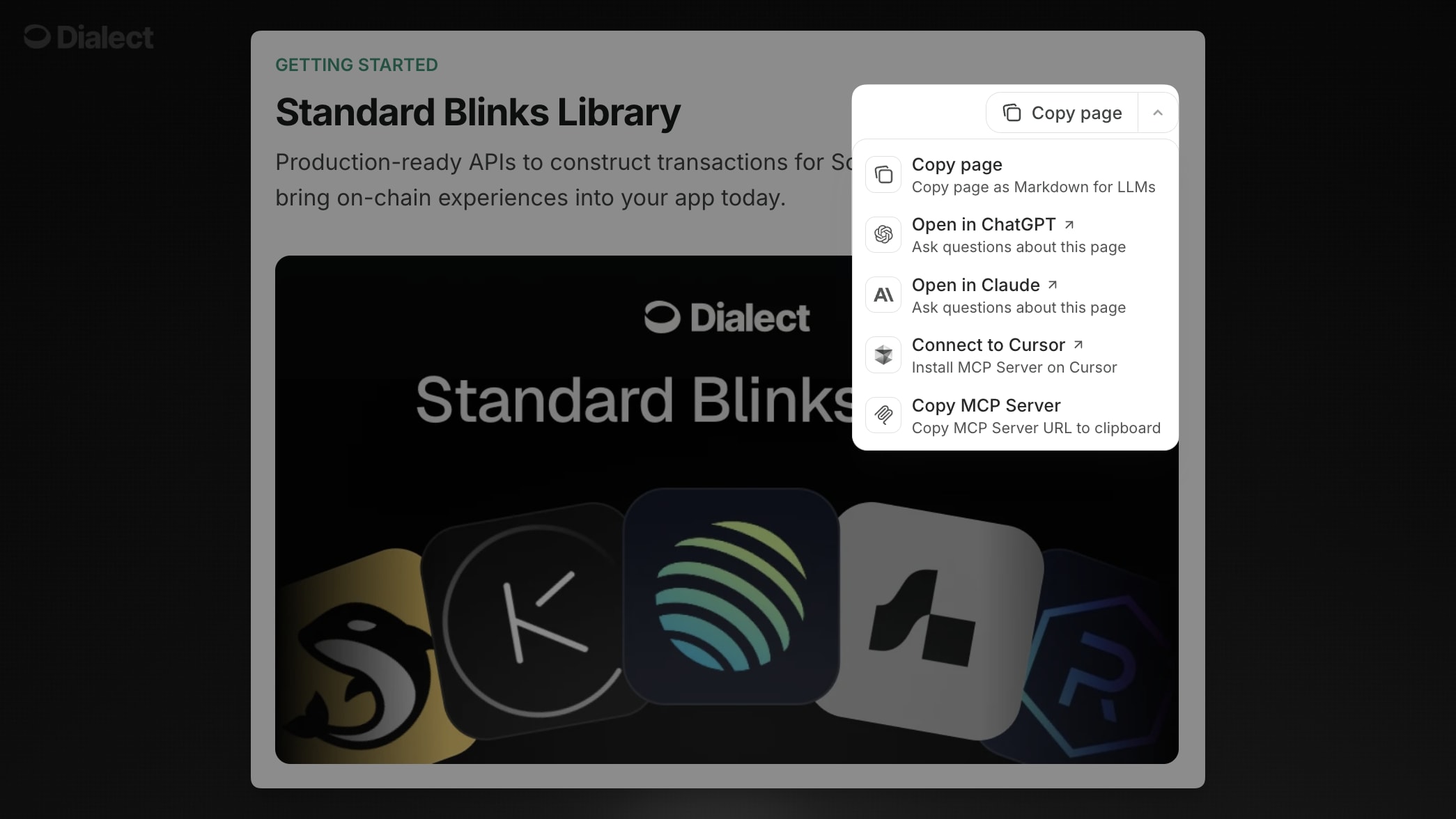
This instantly configures the MCP server without any manual setup.
#### Manual Configuration
Choose your client below and start integrating:
Add the MCP server to your Claude Code configuration:
```bash theme={null}
claude mcp add --transport http dialect-docs https://docs.dialect.to/mcp
```
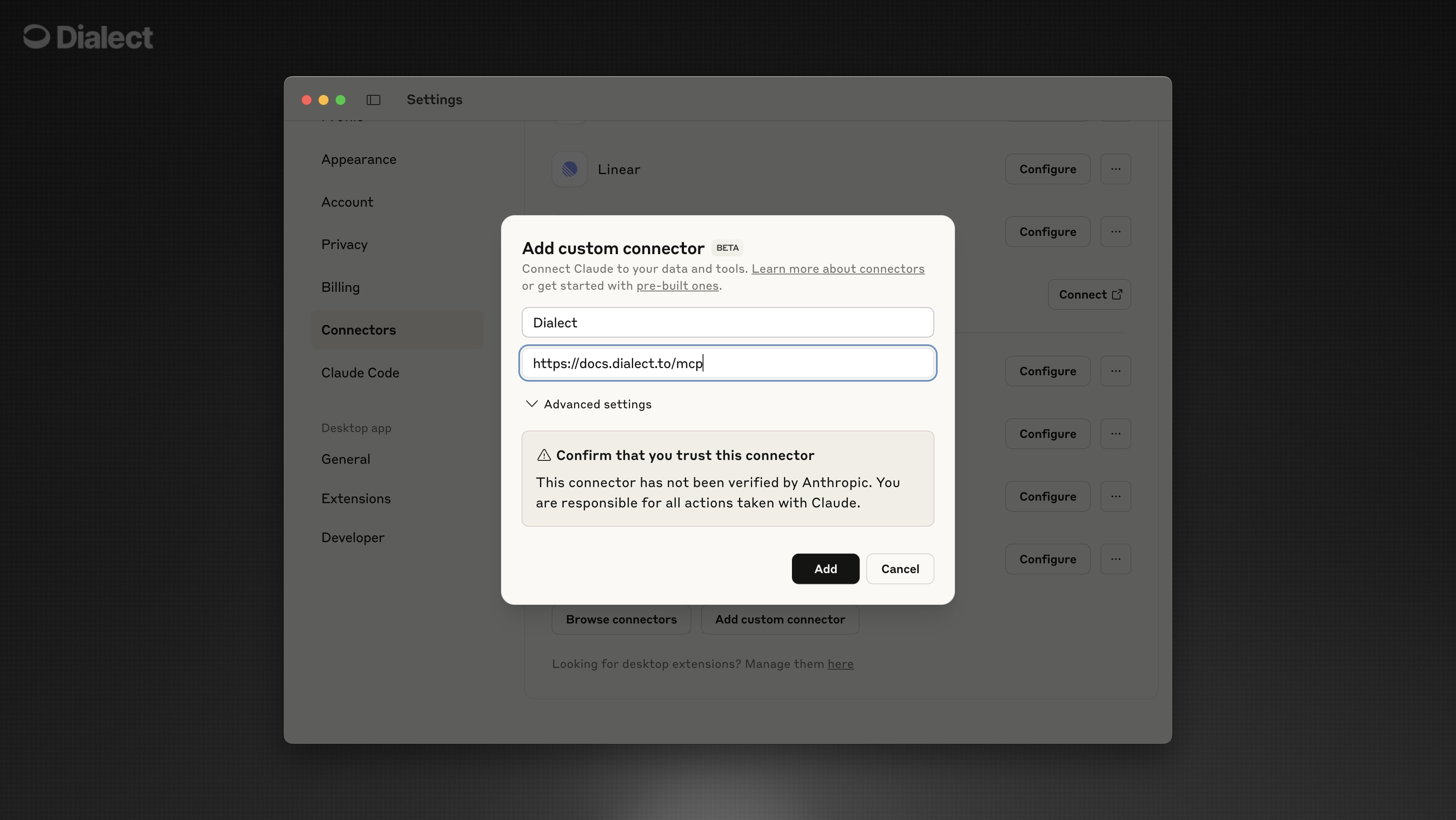
Go to Claude Desktop Settings:
1. Connectors
2. Add Custom Connector
3. Paste the link into the URL field: [https://docs.dialect.to/mcp](https://docs.dialect.to/mcp)
Add the MCP server to your Cursor settings:
1. Open **Cursor Settings**
2. Go to **Tools & Integrations** → **New MCP Server**
3. Add the following server configuration:
```json theme={null}
{
"mcpServers": {
"dialect": {
"url": "https://docs.dialect.to/mcp"
}
}
}
```
For any MCP-compatible client, add this server URL:
```
https://docs.dialect.to/mcp
```
The server provides access to Dialect's full blockchain infrastructure including APIs, blinks, market data, and documentation.
### Local MCP Server
Run a local MCP server on your machine using our one-command installer:
```bash theme={null}
npx mint-mcp add dialect
```
This automatically detects your environment and configures the Dialect MCP server locally for Claude Desktop, Cursor, and other MCP clients.
## Core Features
Build your own blockchain links with custom logic and branding
Access 40+ pre-built protocol integrations ready to use
Query real-time rates, TVL, and protocol metrics across DeFi
Send multi-channel alerts and detect complex events
Search through all guides and examples for context
Access all Dialect endpoints with usage instructions